


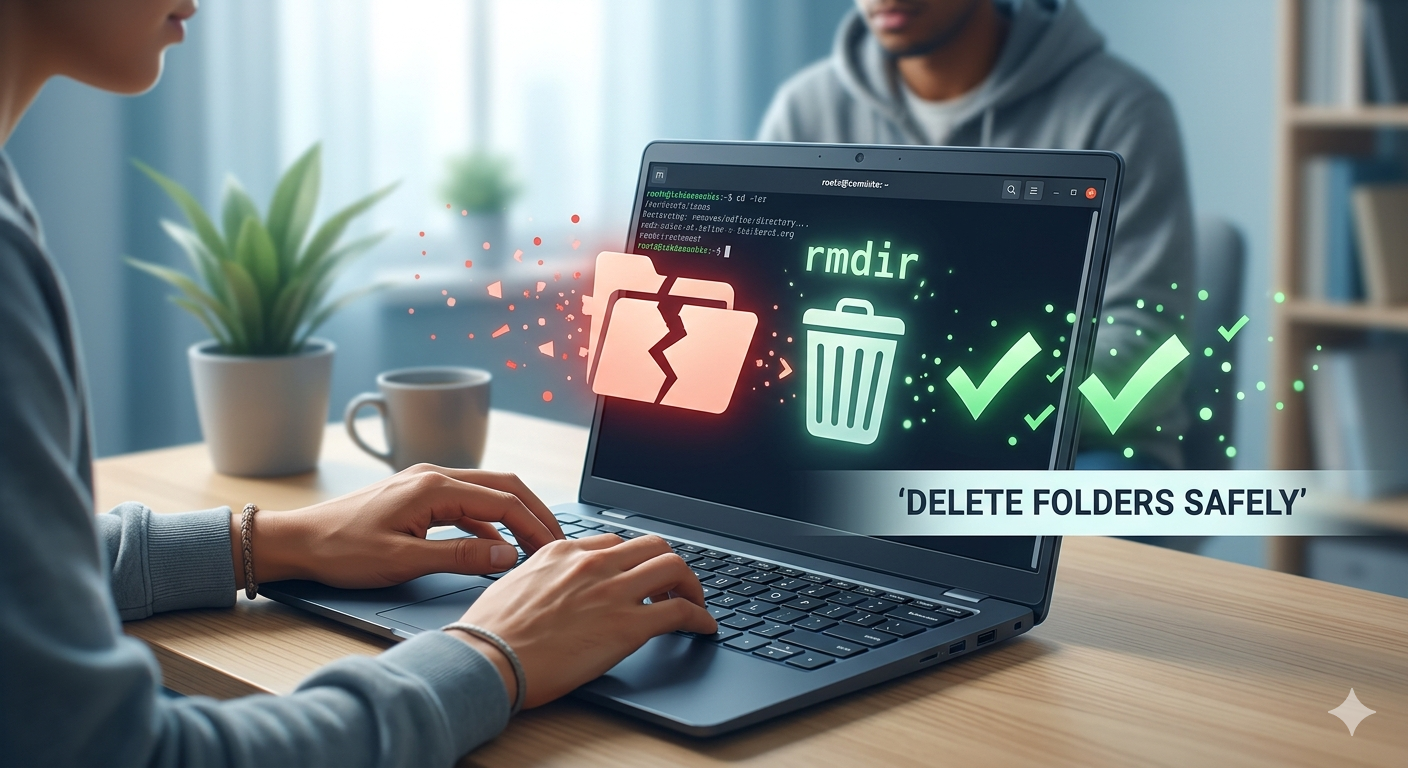
Removing directories in Linux is more common than you think; however, what you need to know is that this should be done carefully to ensure that you do not lose any data accidentally. This guide provides you with safe and effective ways that you can use when you wish to know how to remove a directory in Linux. For the deletion process, you need to use basic Linux commands.
Understanding Directory Removal Commands
There are two main commands offered by Linux that allow you to delete directories: rmdir and rm -r.
-
Rmdir (Remove Directory command)
This is a simple command that you can use to delete the empty directories on your computer. This method is often the safest method, as it prevents any kind of accidental data loss. To delete a directory, you need to enter the command: rmdir folder_name. However, if there is even a single file in the directory, then the command will fail, and your data will be protected.
-
Rm -r (Recursive remove command)
For linux folder remove, you can use the rm -r command, as this command is used for the deletion of a directory with all its content. All the files and subdirectories will be deleted using the command: rm -r folder_name. It is recommended to use this command with caution, as it will remove anything that is present in the folder permanently.
Safer Deletion Practices
When you’re about to delete files, try using the -i flag. It makes rm ask you for confirmation before removing each file. For example: rm -ri folder_name.
That way, you won’t accidentally delete something important, and you get to double-check every step.
You can use the -v flag when you want to see exactly what you are deleting. You should only run the command: rm -rv folder_name. It’ll show you each file as it’s removed.
Don’t just run rm -rf without thinking. The -f flag ignores all prompts and can wipe out things fast, with no chance to undo. Only use it if you’re totally sure.
Before you delete a whole directory, take a look at what’s inside. Run: ls folder_name or ls -R folder_name. This gives you a clear picture of what you’re about to remove. Always check, as it’ll save you from nasty surprises. Refer to the website Datarecovee to learn more about these commands.

 English
 Arabic
 French
 Spanish
 Portuguese
 Deutsch
 Turkish
 Dutch
Dutch
 Italiano
 Russian
 Romaian
 Greek
Greek